Action Camera SD Card Not Recognised? Format In-Camera First
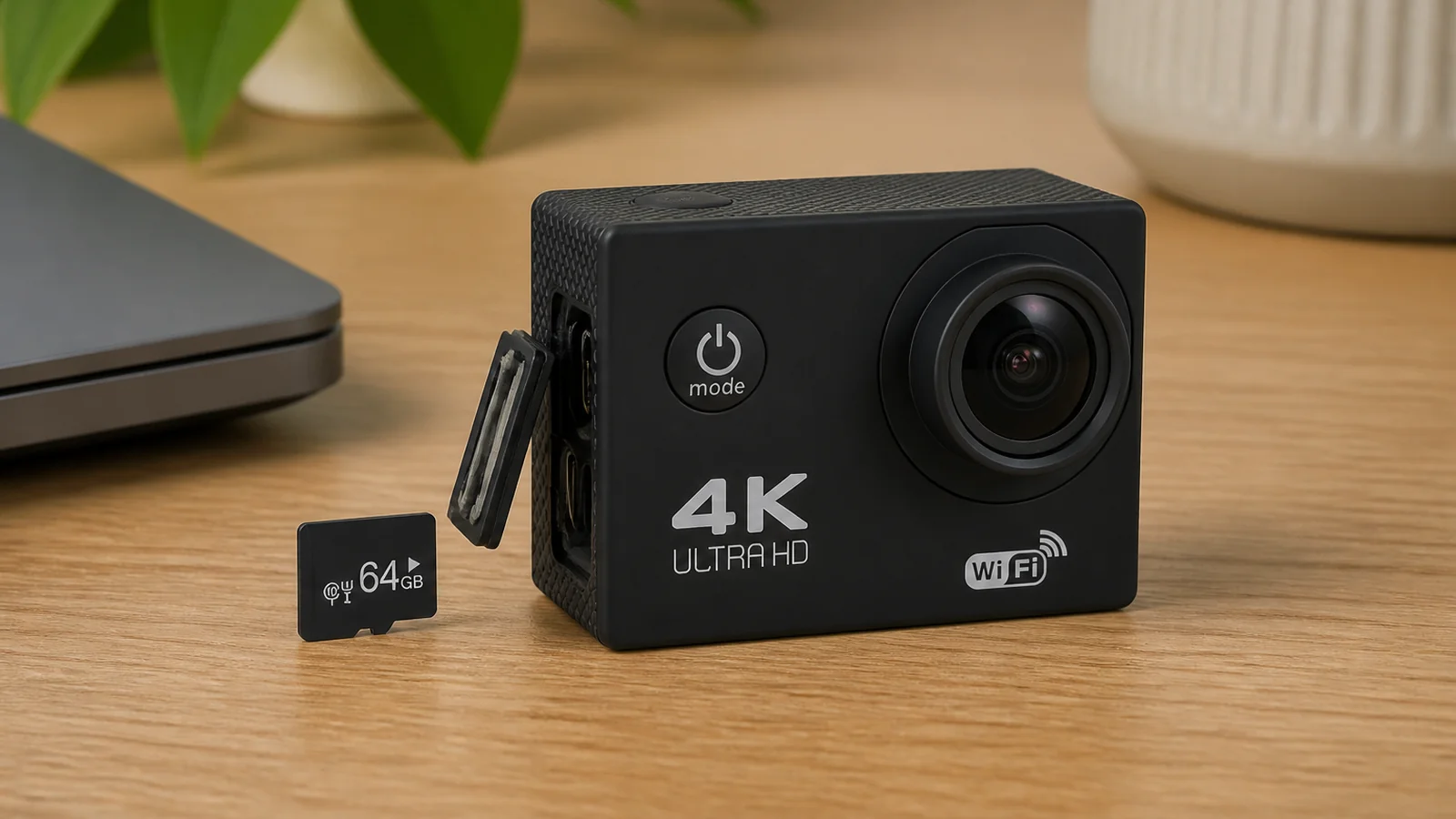
If your action camera will not recognise the microSD (TF) card, format it in the camera first—especially when a 64GB card is included in the box. Formatting only on a computer often leaves a layout the camera rejects. Export any clips you care about before you confirm a format prompt.
Why the included 64GB TF card still needs a first format
A 4K Wi-Fi action camera bundle such as the G200R ships with a 64GB TF card. New cards are not always ready for that camera’s file system until you run an in-camera format. The G200R (AT-G200) records MP4 with H.264 video and JPG stills (up to 16MP). Those files are easy for most UK computers to play once the card is working—but the card must be recognised before anything is saved.
When the camera shows a format prompt, treat it as a warning: formatting erases the card. Copy footage off first if the card already holds clips.
Checklist: get the card recognised
- Power on and insert the card correctly with the camera off if the manual directs that sequence; then power on and wait for the card icon or capacity to appear on the 2.0-inch non-touch screen.
- If prompted to format, export first. Remove the card, copy files to a computer, then return the card and confirm format in the camera menus using the physical buttons on the non-touch display.
- Prefer in-camera format over computer-only format. PC or Mac tools can leave partitions or allocation sizes that this camera does not accept. When in doubt, format again inside the camera.
- Shoot a ten-second test at 1080p30, then play it back on the camera before a full outing.
- If 4K fills the card quickly, drop to 2.7K30 or 1080p30 for longer days. Do not invent “minutes remaining” charts—watch the on-screen free space. For how 4K compares on action cameras in general, see our 4K action camera overview.
- After computer transfers, eject safely; if the camera later fails to see the card, repeat an in-camera format (after backup).
Playback note (short)
Clips are MP4 H.264, which most current Windows and Mac players open without special converters. That does not fix a card the camera cannot mount—recognition still starts with in-camera formatting.
Power and kit context (so you do not mis-blame the card)
A flat battery can interrupt recording and look like a storage fault. The G200R uses one 900 mAh battery (about 90 minutes of 1080p as a reference), charges in about three hours over USB-C at 5V/1A, and includes Wi-Fi plus a wireless remote. Housing, mounts, handlebar/pole clamp, and straps do not affect card formatting—only the camera’s format function does.
Boundaries
- Format in-camera first; do not rely on computer-only formatting.
- Always export before confirming a format prompt.
- No claimed “must be U3” rule here—follow the camera’s own recognition behaviour.
- No invented record-time tables for 4K or 64GB; use on-camera free space and lower resolution when you need longer clips.
- Fixed 140° lens; waterproof only with the housing sealed correctly (up to 30 m); body alone must not go in water.
FAQ
The computer reads the card but the camera does not—what next?
Back up files, then format in the camera. Computer readability does not guarantee camera compatibility.
Can I keep using the included 64GB card?
Yes, once it is formatted in-camera and a short test clip saves and plays back.
Does Wi-Fi replace the card?
No. Wi-Fi can help with control and file access on a compatible phone per the manual; recording still needs a working TF card in normal use.
If you want a kit that already includes a 64GB TF card with the camera, housing, and remote, see the 4K Wi-Fi action camera bundle — a 4K Wi-Fi action camera bundle such as the G200R is ready to format in-camera and start recording as MP4 (H.264).